Connect with your audience and keep them informed when you publish new content on your Ghost publication with built-in email newsletters.
Send new posts as email newsletters
It's possible to send an entire post as an email to your members list in a few simple clicks. Emails are sent based on the access level of the post, so you're able to decide whether to send to all members, or just paid-members only!
1. Create a post
All you have to do is create your content – Ghost handles the rest for you. Create your newsletter content using the editor, and insert content types such as images, video embeds, bookmarks and more.
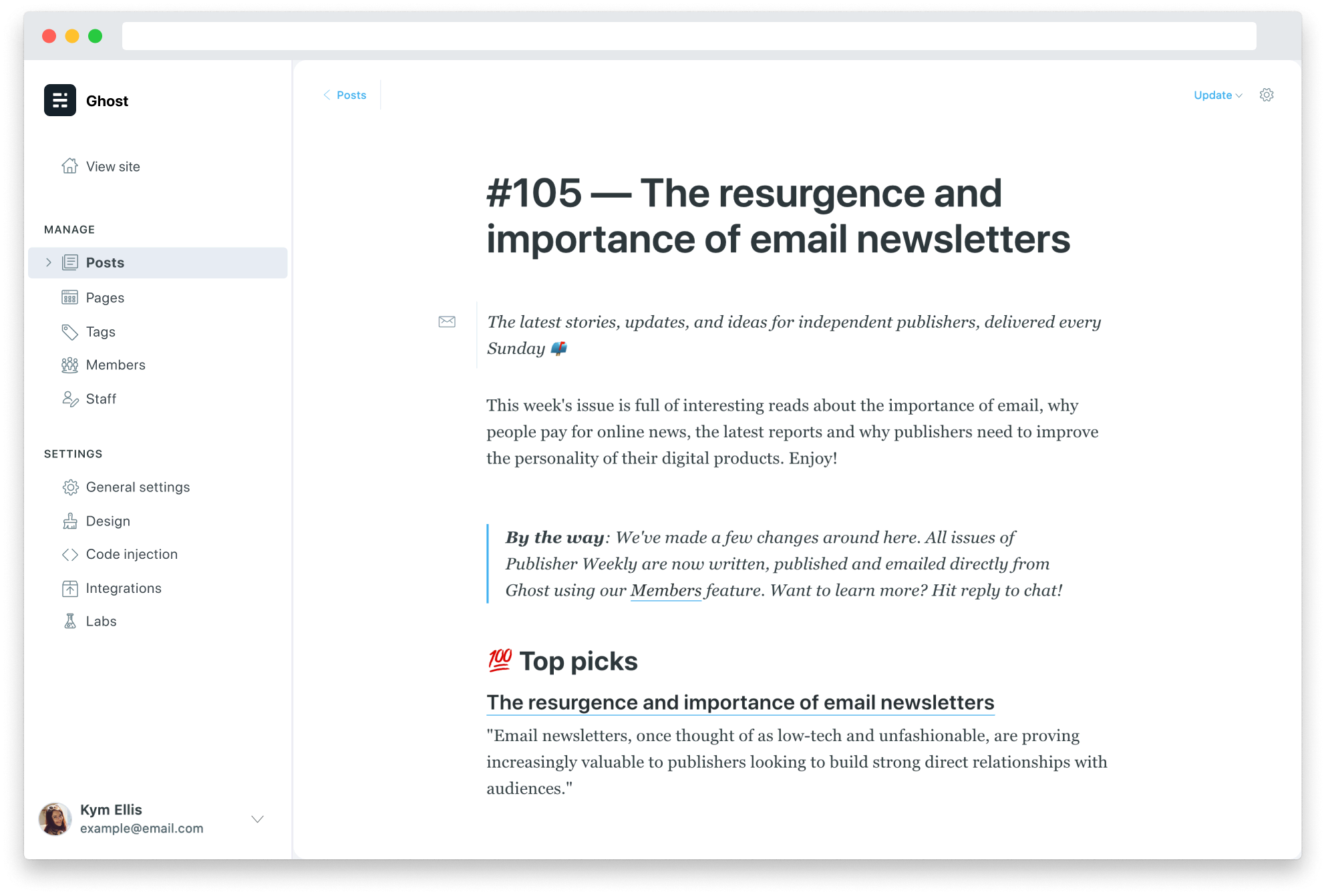
2. Preview your email
Ghost uses a clean, optimised HTML email template and renders your content beautifully in an email client. You can preview what it will look like on desktop and mobile before you publish and send.
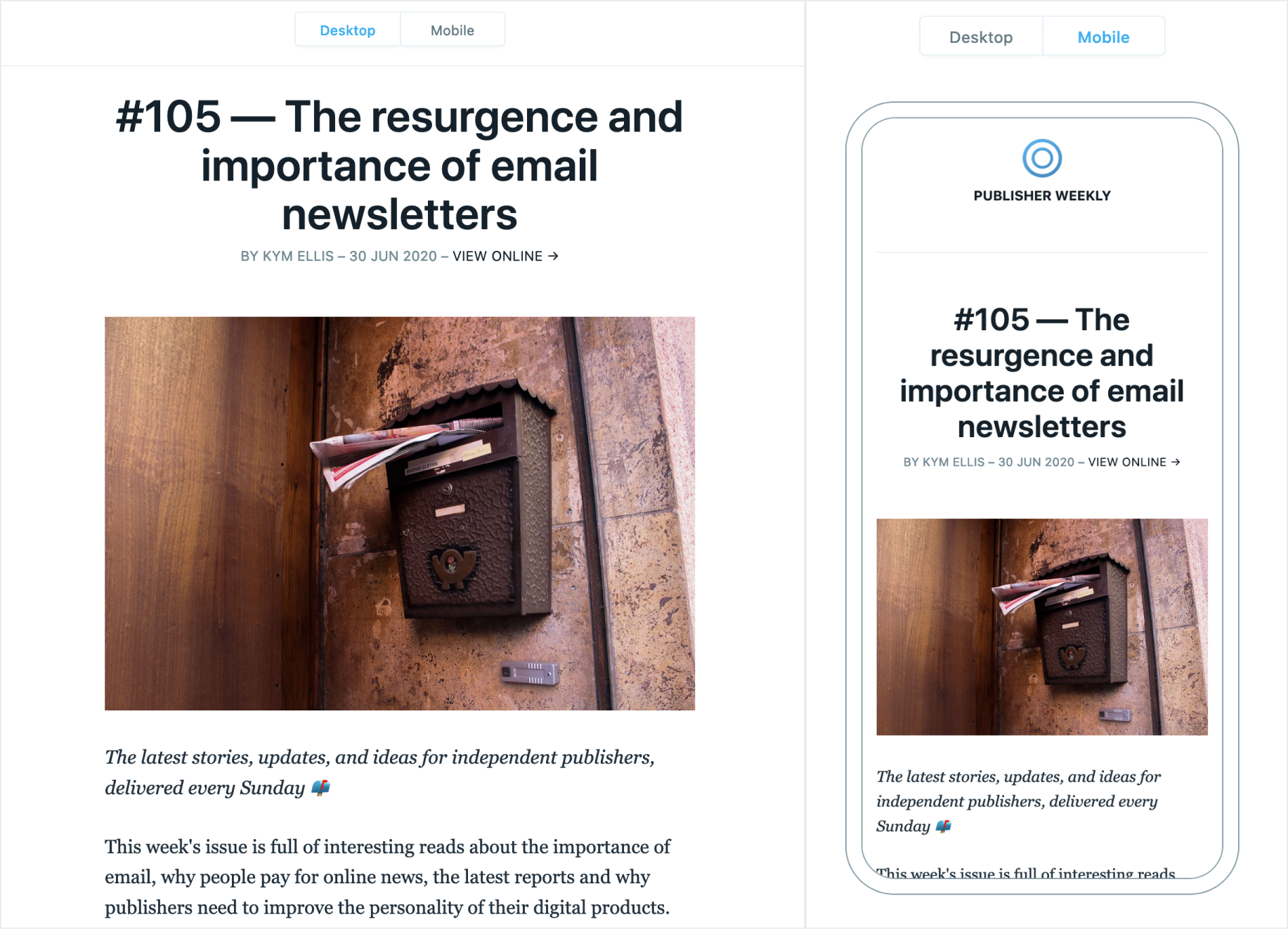
The email template will automatically take care of the content in your posts such as images, embeds and galleries for a hassle-free email writing experience.
3. Publish the post
When you publish or schedule your post, it is automatically emailed to your members. Don't worry, there's an extra information box before you push the final button, so you can ensure you're happy for the post to be published and delivered.
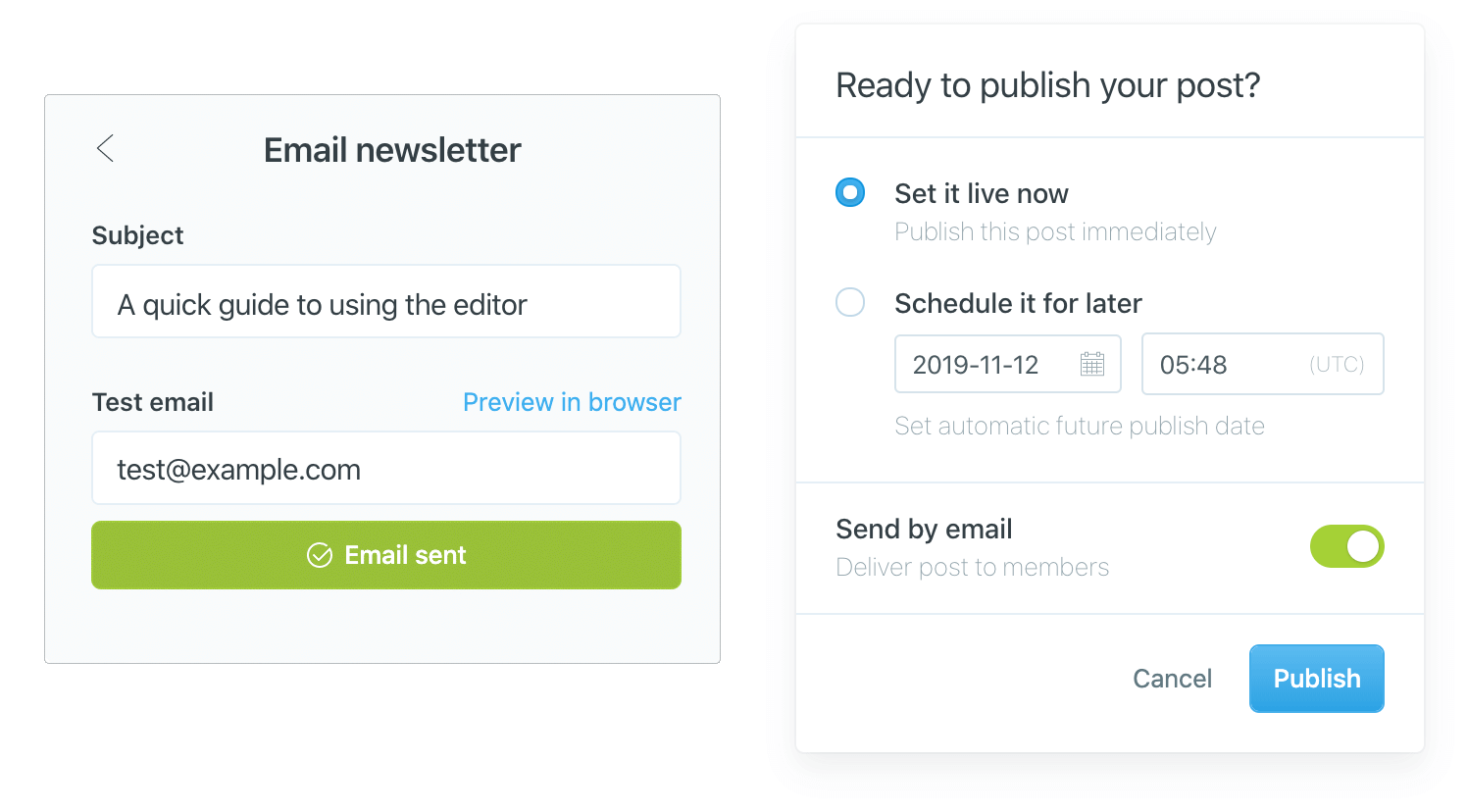
Once published, you'll be able to see that the post was sent as an email from the post list in Ghost Admin.
Email cards
Email cards allow you to personalise your email newsletters with specific content. Content added to email cards will never appear in published posts.
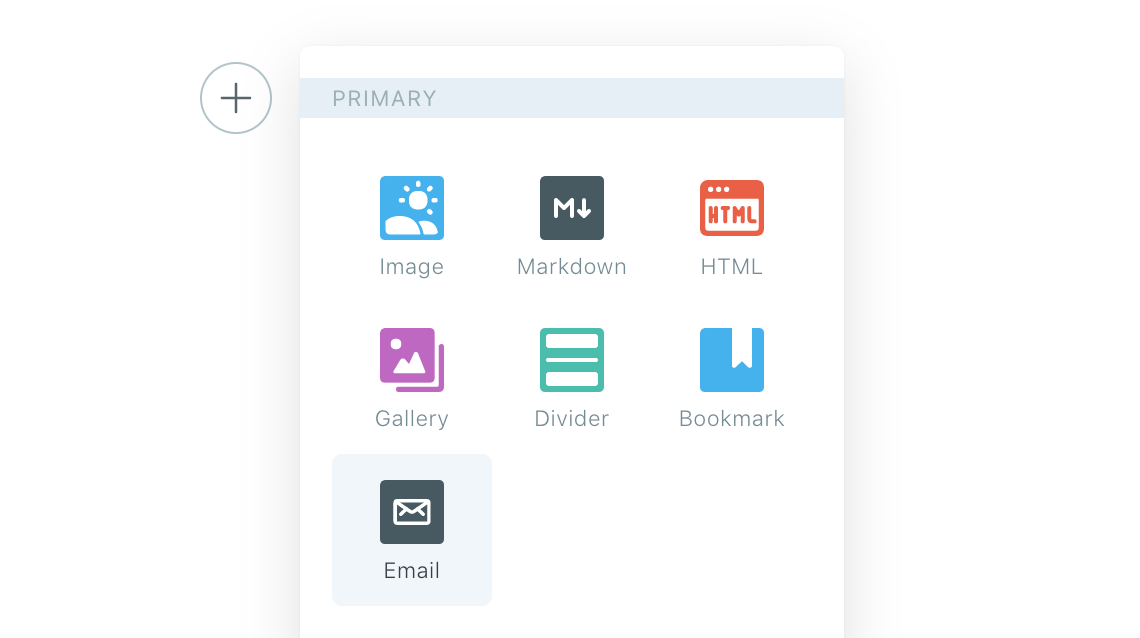
One of the best use cases is to add a custom greeting to your email newsletter. Add an email card by clicking the dynamic menu, or by typing / on a new line.
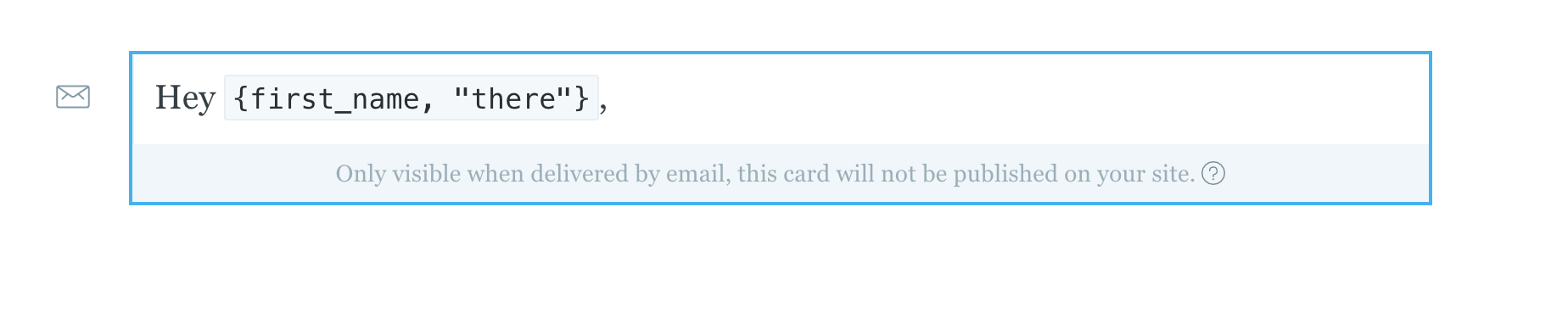
Email cards are pre-filled with an optional greeting, which references your members name using the first_name dynamic placeholder.
When using this placeholder,{first_name, "there"} will be replaced with the members first name. If there is no name available, the fallback "there" will be used.
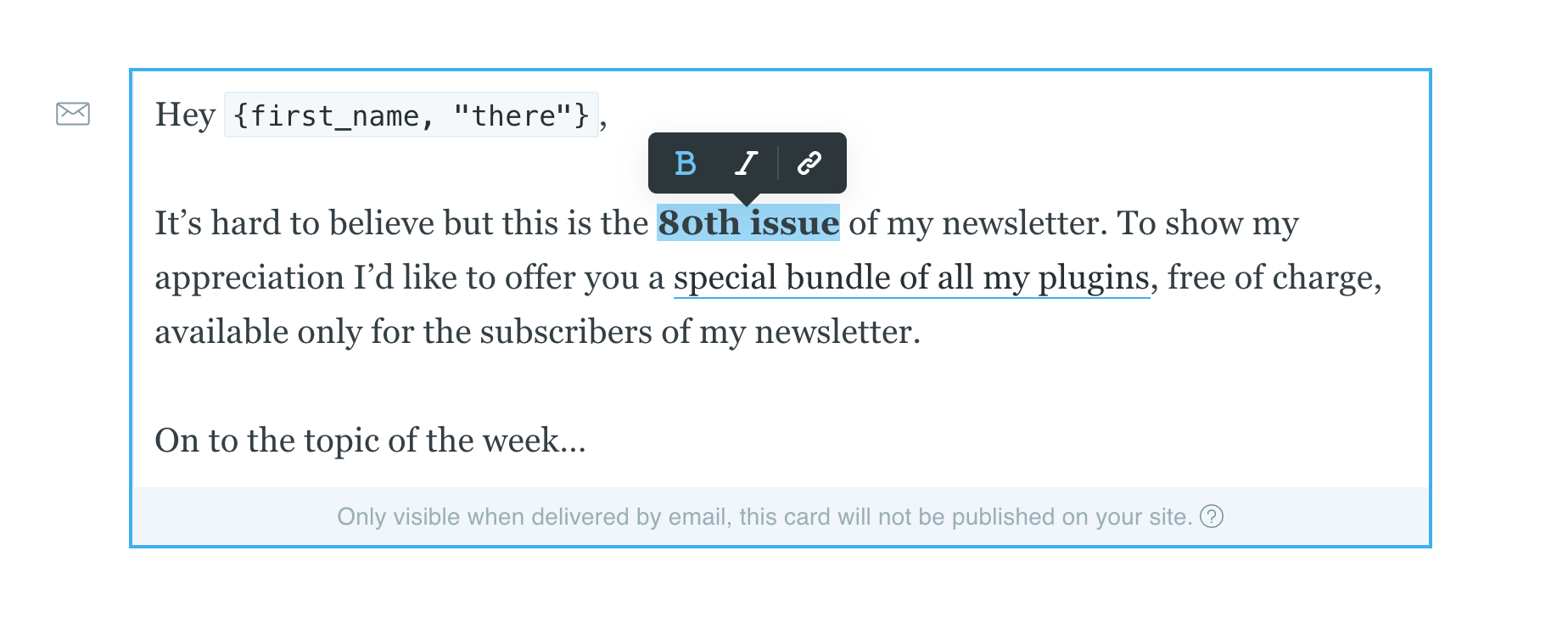
Email cards support basic text formatting and you can use as many email cards as required within a single post to personalise your email newsletters in Ghost.
Unsubscribe links
Emails sent from your Ghost publication include an unsubscribe link by default, so your subscribers can decide if they'd like to recieve future emails from you. This won't affect their membership status to access the content on your site.
Use the getting started guide to find out how to setup members with email newsletters.