Organising content in Ghost
Ghost Admin is where you can organise your site's content as well as access settings for your publication for design, code injection and more. From your admin panel, you'll be able to view your site as it appears to visitors, as well as create and manage all of your content in one place!
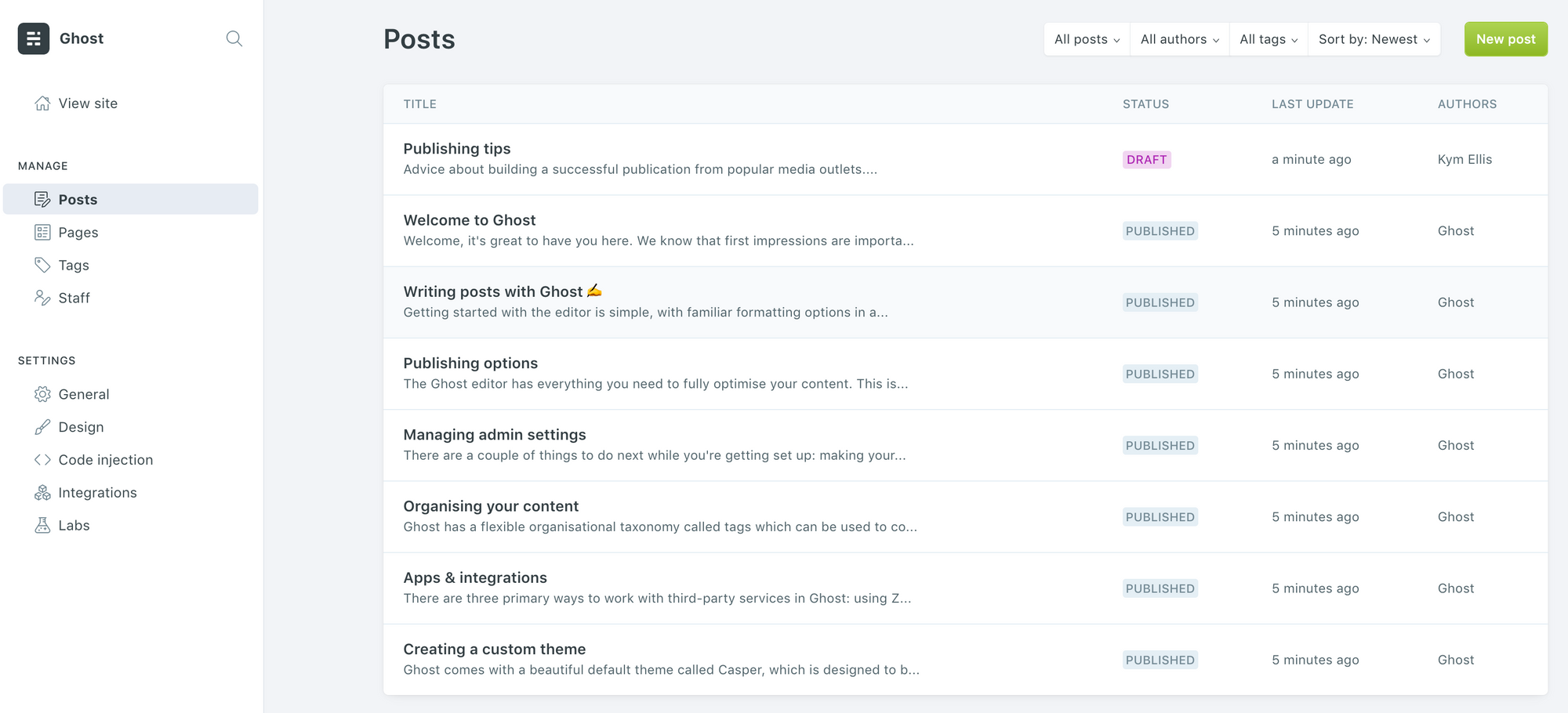
The useful filters in the top right corner allow you to search for specific groups of content based on status, author, tag or how old the post is.
Creating content
There are two types of content in Ghost that can be organised with tags: posts and pages.
- Posts are the primary content type and always belong to an index page or collection of posts.
- Pages are generally used for static one-off content, and are excluded from all feeds. Find out more about posts and pages in the core concepts guide.
Tagging content
Ghost has a flexible organisational taxonomy called tags, which can be assigned from post settings menu within the Ghost editor. By tagging posts with one or more keywords, you can organise articles into related content.

For example you may tag some content with News and other content with Podcast, which would create two distinct categories of content listed on /tag/news/ and /tag/podcast/, respectively. If you tag a post with both News and Podcast - then it appears in both sections.

Tag archives like the one pictured above are dedicated home-pages for each category of content that you have. They have their own pages, their own RSS feeds, and can support their own cover images and meta data.
Primary tags
The first tag in the list is always given the most importance, and some themes will only display the primary tag (the first tag in the list) by default. Tags can be re-ordered from the post settings menu. In this example, "News" is the primary tag:
News, Technology, Startup
Private tags
Hashtags are private tags and can be used for special styling.
For example, if you sometimes publish posts with video content - you might want your theme to adapt and get rid of the sidebar for these posts, to give more space for an embedded video to fill the screen.
News, #video
Here, the theme would assign the post publicly displayed tag of News - but it would also keep a private record of the post being tagged with #video, which can then be used to apply special styling via your theme.
Further reading
- For more theme development techniques like creating one-off pages, check out our extensive Handlebars theme documentation.
- Discover how to create content hubs in this tutorial, using dynamic routing.
- Or build content collections with distinct routes.