Design settings
Adding some design touches to your Ghost publication can be done from the Admin page when logged in to your publication. From here you can add navigation and upload a custom theme.
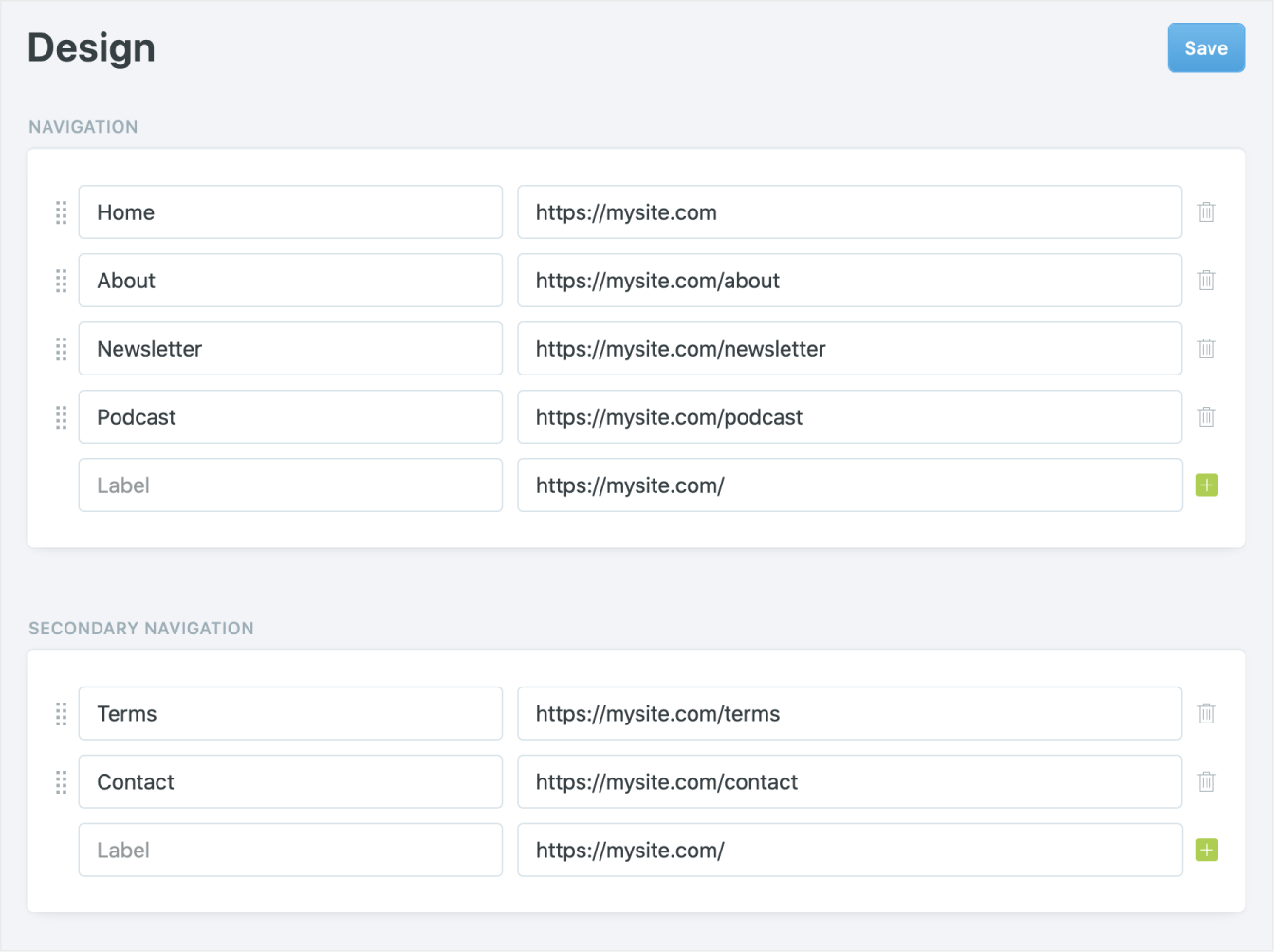
Access the design settings menu on the Design page. Here's an overview of the settings you can change from here.
Adding navigation
Adding a primary navigation menu to your publication can be implemented and edited quickly under the design settings menu. Each page name and it's destination URL can be added to the navigation menu here.
If your theme supports it, you can also add a secondary navigation. These are commonly used in your footer, or in the top right-hand corner beside your primary navigation.
Ghost Themes
This is where the magic happens! Uploading a pre-built or custom theme for your publication unlocks the ability to render your site in almost any way imaginable.
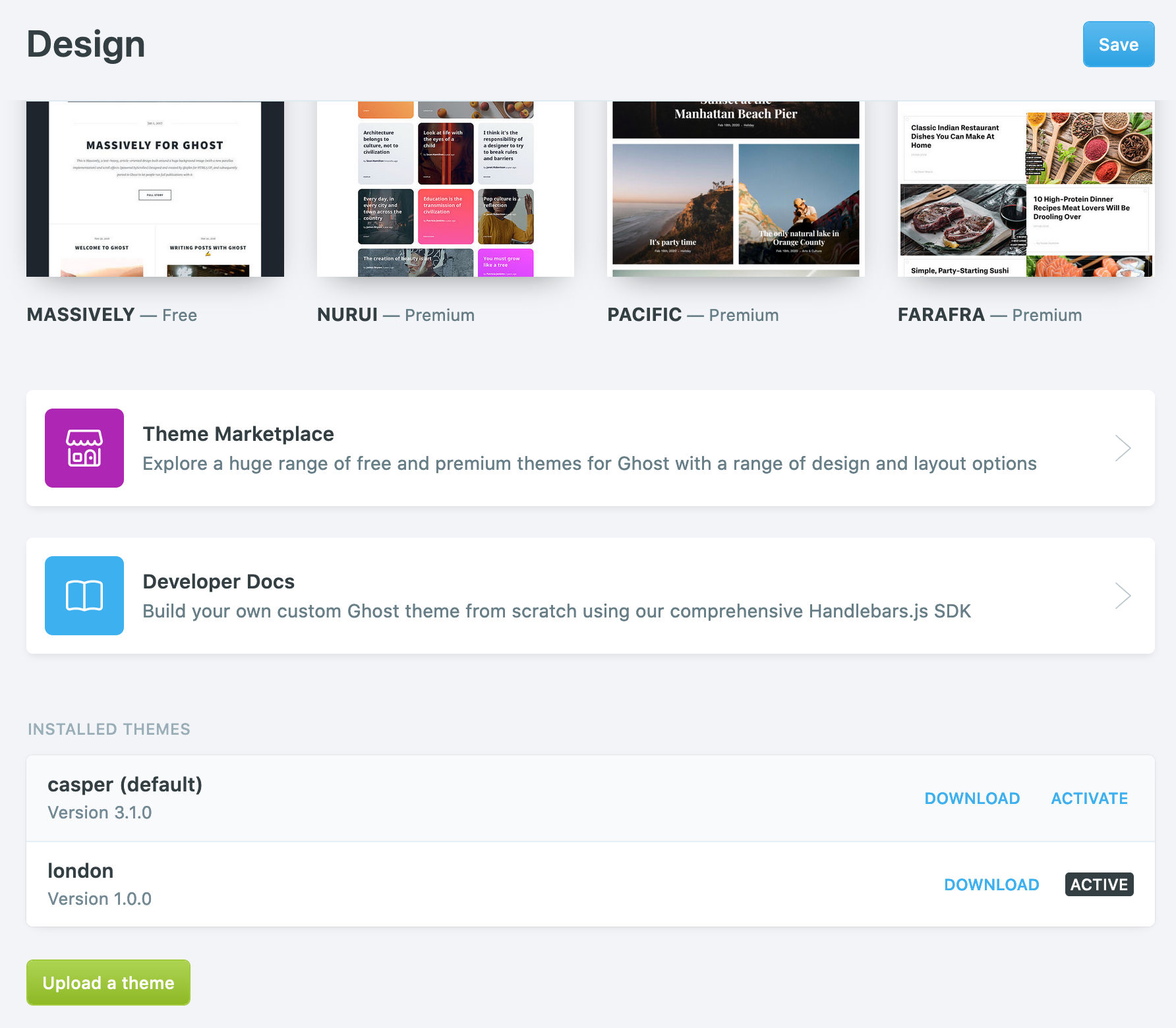
Check out our marketplace of beautiful free and premium themes to get started.
Your new Ghost publication is installed with the default theme, Casper. This is a beautiful magazine style theme — and since it's open source, you can use this theme as a base or a starting point if you like. Developers can also build a Handlebars theme from scratch. Anything is possible!
Upload a theme
Upload a theme to your publication by clicking the Upload a theme button and activate it once uploaded. Themes should always be in .zip format. That's all there is to it, your site will now render using your new theme.
Download a theme
To download a copy of your theme as a backup or for any other purpose, click Download next to the theme from the themes list. Themes are downloaded in .zip format.
Activate or delete a theme
To activate a theme use the activate link next to the theme on the themes list - and to delete a theme click delete.
