Adding search functionality can be useful for viewers to find content on your site. In this tutorial we’ll show you how to add search functionality to your Ghost theme.
Prerequisites
The following tutorial involves customising a Ghost theme, specifically the Casper theme. To learn more check out our extensive Handlebars theme documentation as well as our FAQ guides on downloading and uploading themes.
Getting started
For our search functionality we’re going to be using a service called Site Search 360. Services like this let you offload the complex and time consuming work to something designed for that particular task.
Create an account and enter your domain, Site Search 360 will crawl your entire site for content and produce a search index. Proceed through the steps shown. During the onboarding steps you’ll be presented with snippets of code that look something like this:
<section role="search" data-ss360="true">
  <input type="search" id="searchBox">
  <button id="searchButton"></button>
</section>

<script type="text/javascript">
  /* Create a configuration object */
  var ss360Config = {
    /* Your site id */
    siteId: "yourdomain.com",
    /* A CSS selector that points to your search box */
    searchBox: {selector: '#searchBox'}
  };
</script>
<script src="https://cdn.sitesearch360.com/v13/sitesearch360-v13.min.js" async></script>
Make a note of these code snippets, as we’ll need to add them into our theme later.
Creating a custom page template
To add search to our theme we’re going to be making use of custom templates, which will allow us to selectively add the search functionality to any page. Check out our tutorial on creating a custom template to get a better understanding.
Create a new file at the root of your theme called custom-page-with-search.hbs and open it in your code editor. To get a head start on the template, and to match the existing page template design, open the existing page.hbs template and copy the code within it into the new custom template file you just created.
Adding the search code
Now that we have a custom template created we can add the code for the search components and functionality. Locate a position in your recently created template where you would like to render the search components. In my example I've placed the search components just after the main content within the page. Add the Site Search 360 code to the custom-page-with-form.hbs template.
<section class="post-full-content">
  <div class="post-content">
    {{content}}
  </div>

  <section role="search" data-ss360="true">
    <input type="search" id="searchBox">
    <button id="searchButton"></button>
  </section>

  <!-- Search results wrapper -->
  <div id="search-results-wrapper"></div>

  <script type="text/javascript">
    /* Create a configuration object */
    var ss360Config = {
      /* Your site id */
      siteId: "yourdomain.com",
      /* A CSS selector that points to your search box */
      searchBox: {
        selector: '#searchBox'
      },
      /* A CSS selector that points to your search results */
      results: {
        embedConfig: {
            contentBlock: "#search-results-wrapper"
        }
      }
    };
  </script>
  <script src="https://cdn.sitesearch360.com/v13/sitesearch360-v13.min.js" async></script>

</section>
The above code does have some modifications to the original code given in the setup guide. A results wrapper has been added and then referenced in the JavaScript configuration. This is to show search results within the page, rather than in a modal window which is what Site Search 360 does by default.
Creating your search page
Save your theme changes and upload your theme via the Design view in Ghost admin. Next, create a new page called “Search” and use the Template select option at the bottom of the page settings to select the template “Page With Search”.

Hit publish and navigate to the page on your site to see the search functionality in action.
Styling your search page
Site Search 360 has a very extensive ‘Search Designer’ tool to change how your search page looks, as well as a selection of working examples for you to copy from. However if you’re looking to style it yourself with CSS then check out the code sample below:
/* Adjust search field */
.ss360-custom-search .ss360-custom-search__searchbox {
  max-width: 100%;
  color: #111;
}

/* Remove background, reset text colours */
.ss360-layer {
  background: none;
  color: inherit;
}

/* Remove shadows from various elements */
.ss360-suggests,
a.ss360-suggests__image-wrap,
a.ss360-suggests__image-wrap:hover,
a.ss360-layer__heading-anchor {
  box-shadow: none;
}

/* Adjust feature image */
a.ss360-suggests__image-wrap img {
  max-width: 100%;
}

/* Shift down text content, inline with feature images */
.ss360-suggests__content {
  margin-top: 1em;
}
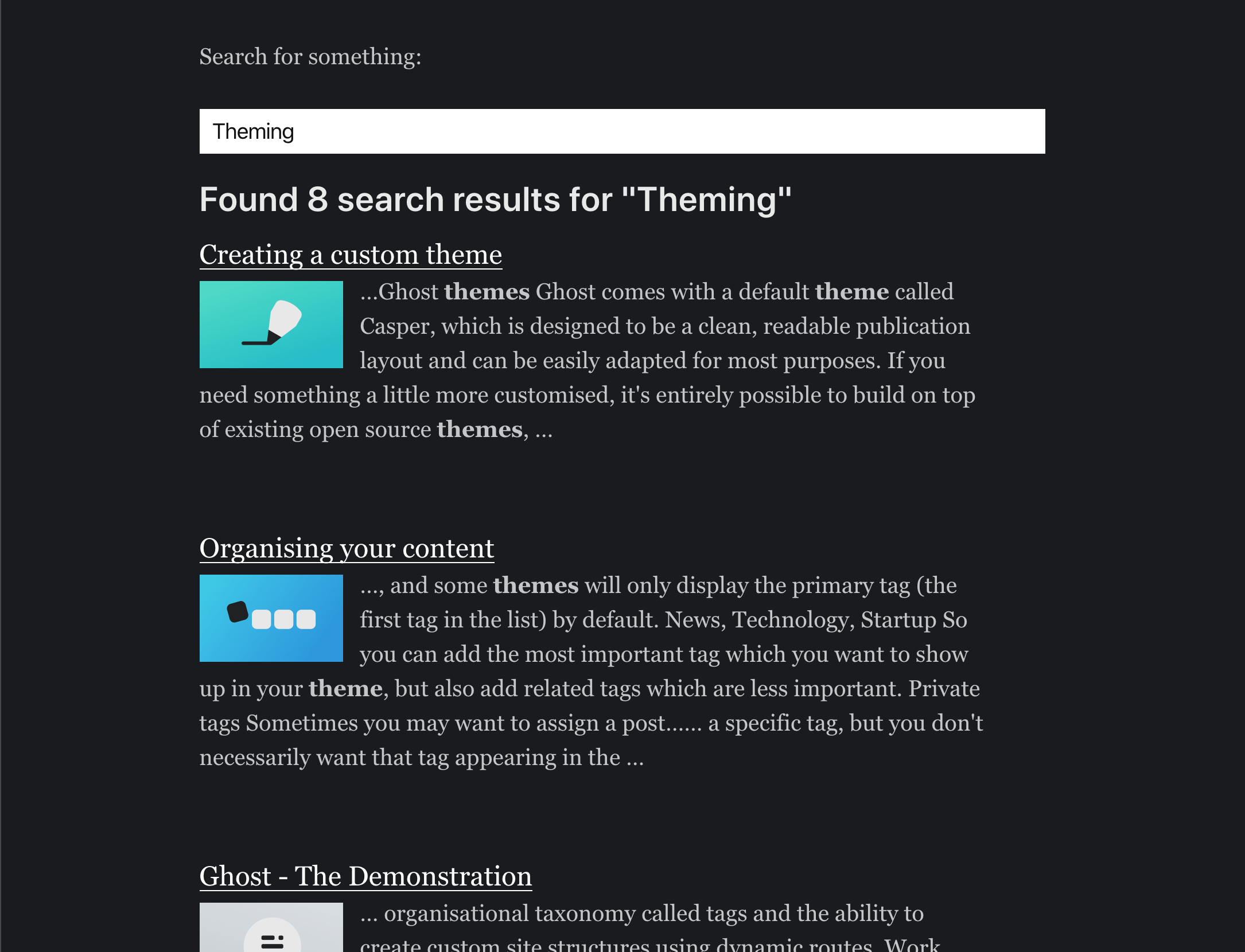
The styles above, in conjunction with the same code shown in this tutorial, will produce this result in the theme Casper:

If you're looking for something more custom to suit your needs, check out Site Search 360's "Search Designer" tool.
Summary
Congrats on adding search functionality to your Ghost site! 🎉 One of the advantages to using a tool like Site Search 360 is that you’ll be able to monitor usage. Allowing you to understand how often people are wanting to search your site, and what they are searching for so you can improve the navigation experience. Check out some of our other site monitoring and analytics tools in our Integrations.