The @site property provides access to global settings, which are available anywhere in your theme:
{{@site.url}}– the url specified for this site in your custom config file{{@site.title}}– the site title from general settings{{@site.description}}– the site description from general settings{{@site.icon}}- The publication icon from general settings{{@site.logo}}– the site logo from general settings{{@site.cover_image}}– the site cover image from general settings{{@site.twitter}}– the twitter URL from general settings{{@site.facebook}}– the facebook URL from general settings{{@site.navigation}}– the navigation information configured in settings/design{{@site.timezone}}– the timezone as configured in general settings{{@site.lang}}- the configured site language.
Example Code
default.hbs
<html lang="">
...
<nav class="main-nav overlay clearfix">
<a class="blog-logo" href=""><img src="" alt="Blog Logo" /></a>
<a class="subscribe-button icon-feed" href="/rss/">Subscribe</a>
</nav>
...
</html>@site meta data
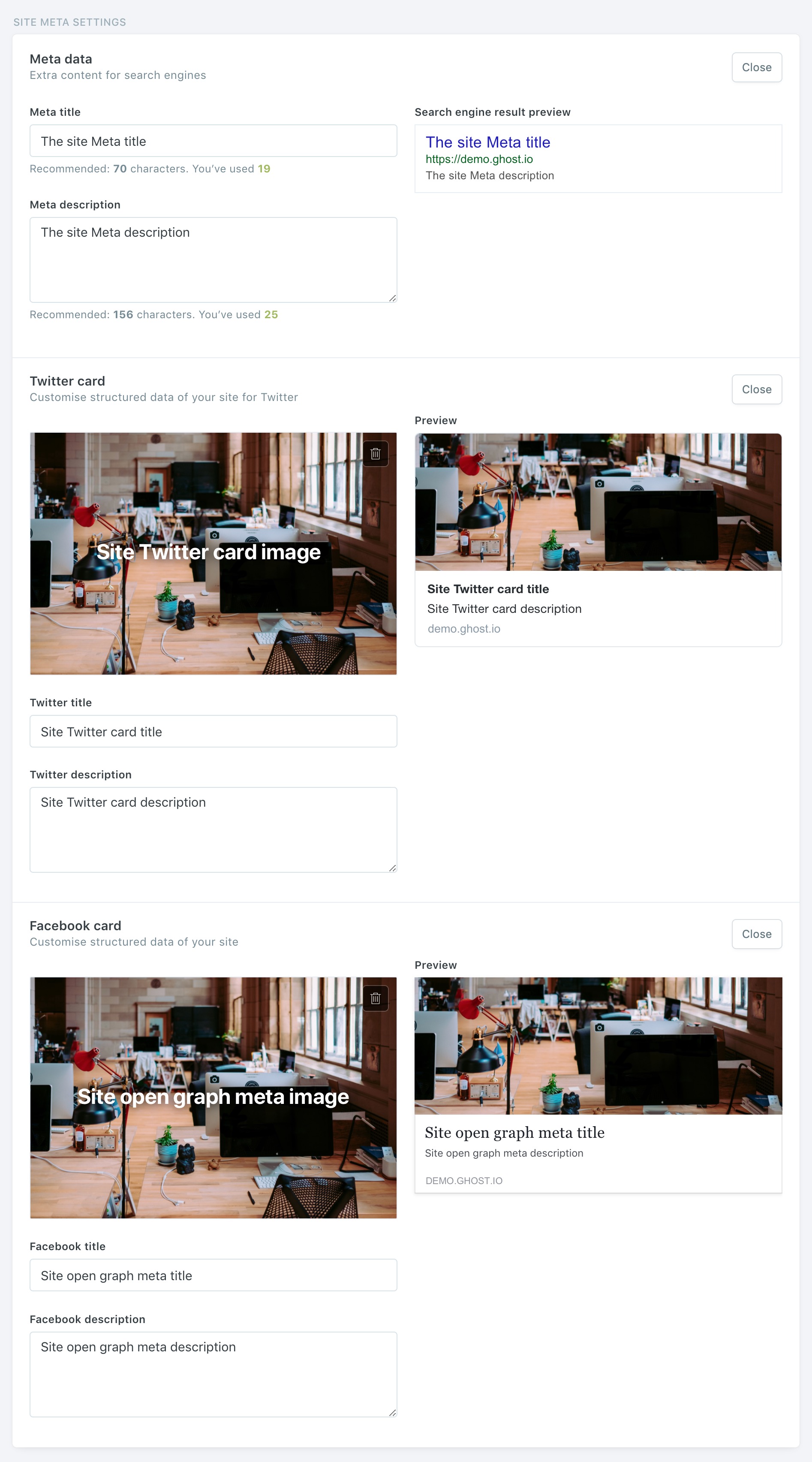
The @site helper provides more extensive attributes around site meta data as well. The @site meta data values can be set in the Ghost admin under Site Meta Settings within General Settings:
{{@site.meta_title}}– the site meta title{{@site.meta_description}}– the site meta description{{@site.twitter_image}}– the site Twitter card image{{@site.twitter_title}}– the site Twitter card title{{@site.twitter_description}}– the site Twitter card description{{@site.og_image}}– the site open graph image (used when shared on Facebook){{@site.og_title}}– the site open graph title (used when shared on Facebook){{@site.og_description}}– the site open graph description (used when shared on Facebook)
Here's how these helpers correspond with the settings in the Ghost admin:
You may see
@blogused in older themes, this is outdated.@siteshould always be used instead.