Update Ghost
How to upgrade from v to the latest version
First, make a full backup
Whenever doing a manual update it’s a good idea to take a full backup of your site first. If anything goes wrong, you’ll still have all your data

Start by exporting a JSON file backup of all your posts from the labs area of Ghost Admin
# Duplicate the content directory
cp -r content /backup/content
Then, make a copy of your entire /content directory as a backup for themes and images
Your theme will need to be updated
Quite a few things have changed compared to your current version of Ghost, so you’ll need to make some changes to your theme
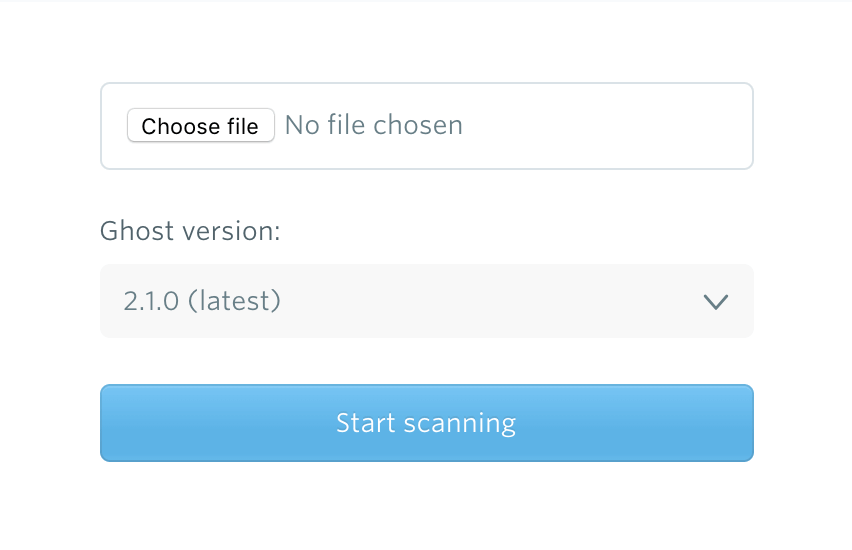
To see what changes are need to be made, download a copy of your theme zip file, and upload it to our GScan automatic theme compatibility testing tool.
GScan will provide a report on any new features in the Ghost theme API which are not being used, or any old ones you might be using which have been deprecated - so you can get everything fixed up.
Run the Ghost update command
When you’re ready, make sure you’re in your site’s root directory and then run the Ghost update command using Ghost-CLI
# Ensure your CLI is up to date
sudo npm install -g [email protected]
# Run the update
ghost updateTroubleshooting any problems
The most common reason for an update failure is running out of memory, so make sure you have enough RAM or swap configured in advance
Force update
If an update fails you can start by forcing a retry to attempt the upgrade a second time
# Force retry
ghost update --force
Rollback
If something goes wrong, you can always revert to the previous stable version of Ghost
# Revert
ghost update --rollbackCreate a brand new Ghost install
There is no direct upgrade path to the latest version of Ghost, so you'll need to follow the setup guide and create a brand new install to migrate to
Major versions of Ghost break compatibility to allow the platform to evolve. Creating a new install means you'll have the latest version of the app while still being able to import your old content.
On Ghost(Pro) this takes a few clicks, or if you're self-hosting you can follow our in-depth guides.
Migrate your content from old to new
Once the new install is set up, the only thing left to do is to import all of the content which was backed up at the start of this process
Import JSON
To begin the migration, head to the Labs section of Ghost Admin and import the ghost.json backup which you exported earlier. The importer will let you know if there are any issues
Upload theme
Next, upload your updated theme to the Design section of Ghost Admin to get your site looking the same way it did before. Again, the theme uploader will tell you if there are any issues
Copy over images
Finally, all images from /content/images/ should be copied over to your new install
# Verify content dir permissions
sudo chown -R ghost:ghost contentTired of manually updating?
Try our official, fully-managed PaaS with automatic weekly upgrades, backups, security and performance optimisation all in one